

Optimize Your Adobe Stock
Image Submissions
View, edit, and remove EXIF data from your Adobe Stock images. Add IPTC keywords and metadata to improve search ranking in Adobe's marketplace.
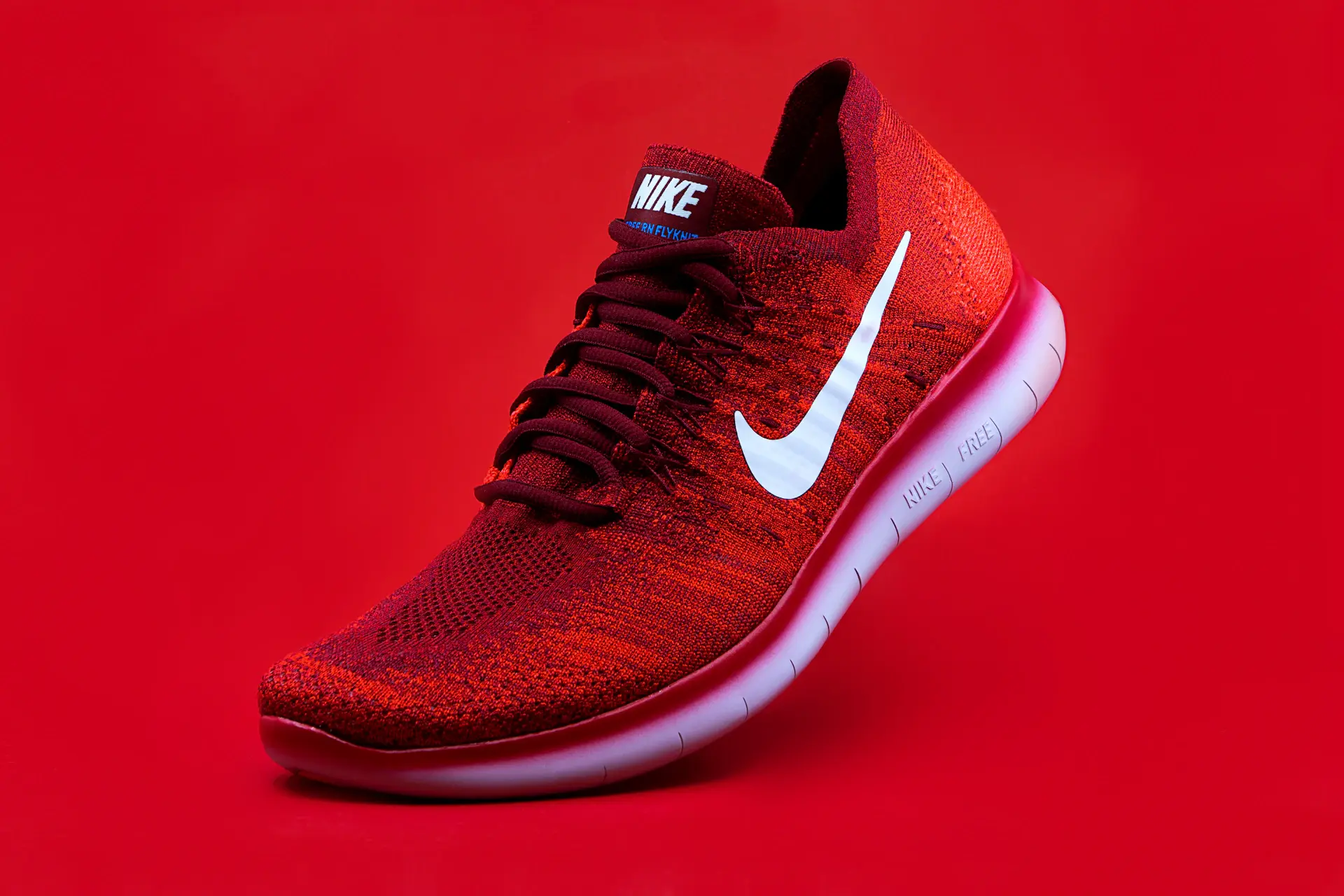







Metadata determines whether your photos sell on Adobe Stock
Adobe Stock relies heavily on embedded IPTC metadata to index and rank your images in search results. When a buyer searches for 'sunset mountain landscape,' Adobe Stock's algorithm matches that query against the IPTC keywords, title, and description embedded in your image files. Photos with rich, relevant metadata get shown to buyers. Photos with weak or missing metadata get buried — no matter how beautiful they are.
GPS Location
Exact coordinates where photo was taken
Date & Time
When the image was captured
Camera Info
Device make, model, and settings
Technical Data
ISO, aperture, shutter speed

Adobe Stock EXIF Tools for Contributors
Everything you need to view, edit, and remove EXIF data from your Adobe Stock product images.
EXIF Viewer
View all embedded metadata — GPS, camera, date/time, and more.
EXIF Remover
Strip GPS and private data to protect your location privacy.
IPTC Injector
Add keyword-rich metadata for better Google Images ranking.
Batch metadata for contributor uploadsAdd titles, keywords, copyright and creator fields to every submission before upload.
Start Adobe Stock free →
What metadata matters for Adobe Stock?
Adobe Stock reads your embedded IPTC metadata to understand, categorize, and rank your images. Here is what a typical submission looks like before optimization.
IPTC fields to fill in for every Adobe Stock submission
Adobe Stock uses these IPTC fields to index your images. Filling them correctly is the single most important factor for discoverability. All can be written in seconds with Exif Injector.
Fill contributor IPTC fields in one passUse the Adobe Stock template to generate marketplace-ready metadata for every photo.
Start Adobe Stock free →Step-by-step: embed metadata in Adobe Stock photos with Exif Injector
Edit and export your photos
Process your images in Lightroom, Capture One, or Photoshop. Export as JPEG at maximum quality. Adobe Stock requires minimum 4MP resolution (approximately 2000 x 2000px).
Open Exif Injector
Go to Exif Injector and switch to Inject mode. Upload your images — use batch mode to process an entire shoot at once.
Fill in the IPTC fields
Write your Title (ObjectName), Description (Caption-Abstract), and Keywords. Use AI-generated keywords for speed, or write your own. Adobe Stock allows up to 50 keywords — use them all.
Verify technical EXIF data
Ensure your camera EXIF data (make, model, lens, settings) is intact. Adobe Stock values original photography with complete technical metadata. Do not strip camera data from stock submissions.
Download and submit to Adobe Stock
Download the metadata-enriched images and upload through the Adobe Stock Contributor portal. The embedded IPTC metadata auto-fills the title, description, and keywords fields during submission — saving time.
Ready to prepare your submissions?The Adobe Stock template pre-fills contributor details, keywords and copyright.
Start Adobe Stock free →Keyword strategy for Adobe Stock image metadata
Adobe Stock's search algorithm matches buyer queries against your embedded IPTC keywords. Think like a buyer, not a photographer:
Subject / content
What is literally in the image. Be specific.
Concept / mood
Abstract concepts that buyers search for.
Setting / location
Where the image was taken or appears to be.
Composition & style
How the image looks — framing, color, treatment.
Industry / use case
How buyers will use the image.
Demographic details
Specifics about people in the image (if applicable).
Generate Adobe Stock keywords with AILet AI build marketplace keywords from your image set in seconds.
Start Adobe Stock free →Frequently asked questions
Related guides
Start optimizing your Adobe Stock submissions today
View, inject, and optimize IPTC metadata for your stock photos. Free to use, no account required.